1. Connection
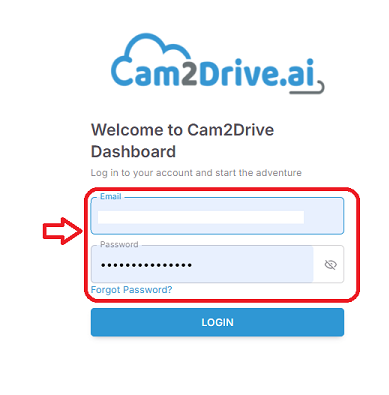
As an installer, you can access your dashboard after completing the registration process. Your distributor must first create your professional account using your email address.
Once this step is completed, you will automatically receive an email containing a link to set your password.
These credentials (your email address and the password you created) will then allow you to access your personal installation portal.
2. Manage the list of clients
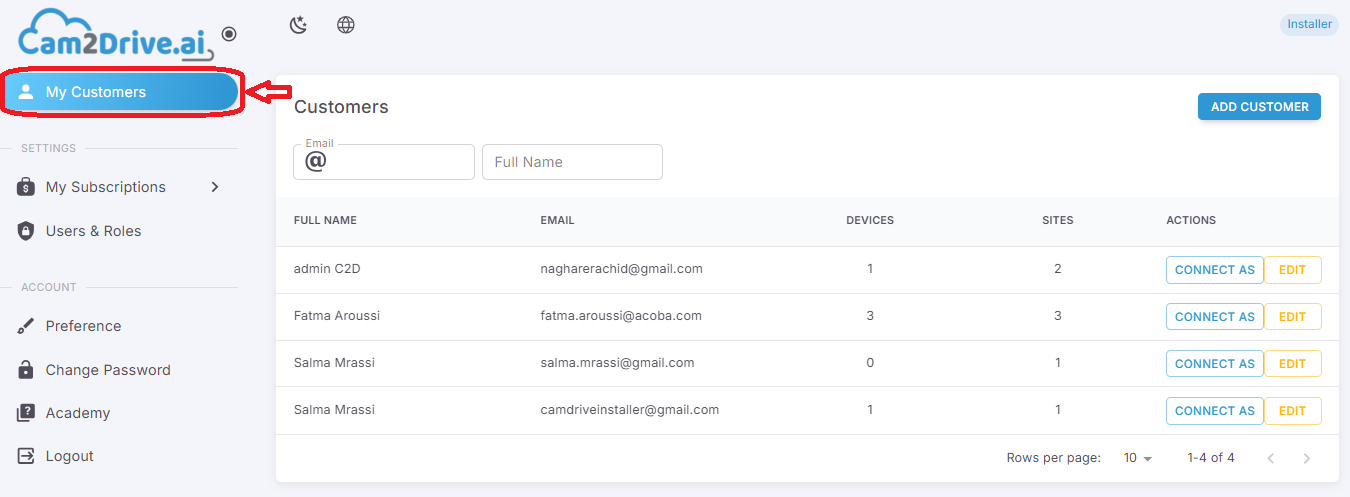
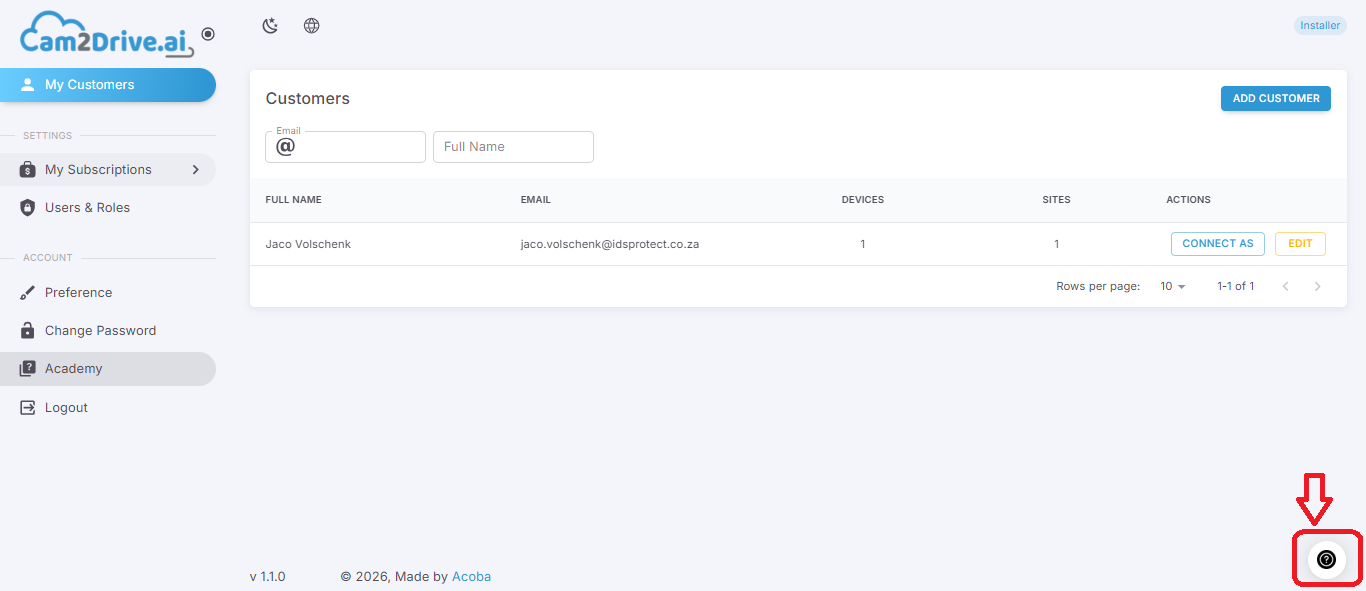
Once connected, the left menu displays: My clients, Settings (My subscriptions, Users and roles), Account (Preferences, Change password, Logout).
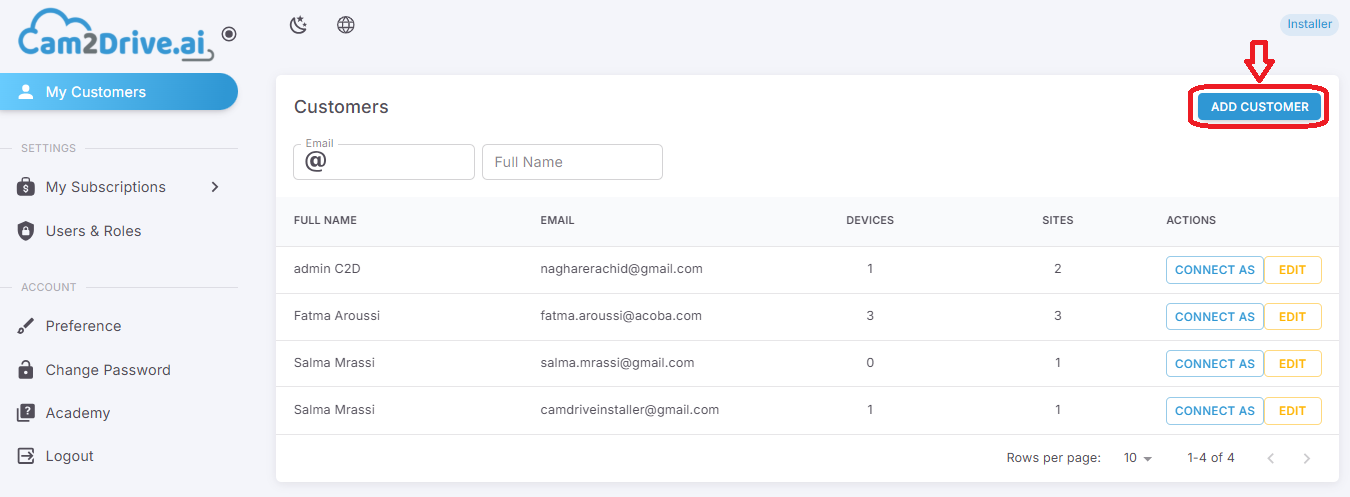
Click on “My customers” to view and manage all your clients.
2.1. Add customer
To add a new client, simply click on the “Add customer” button.
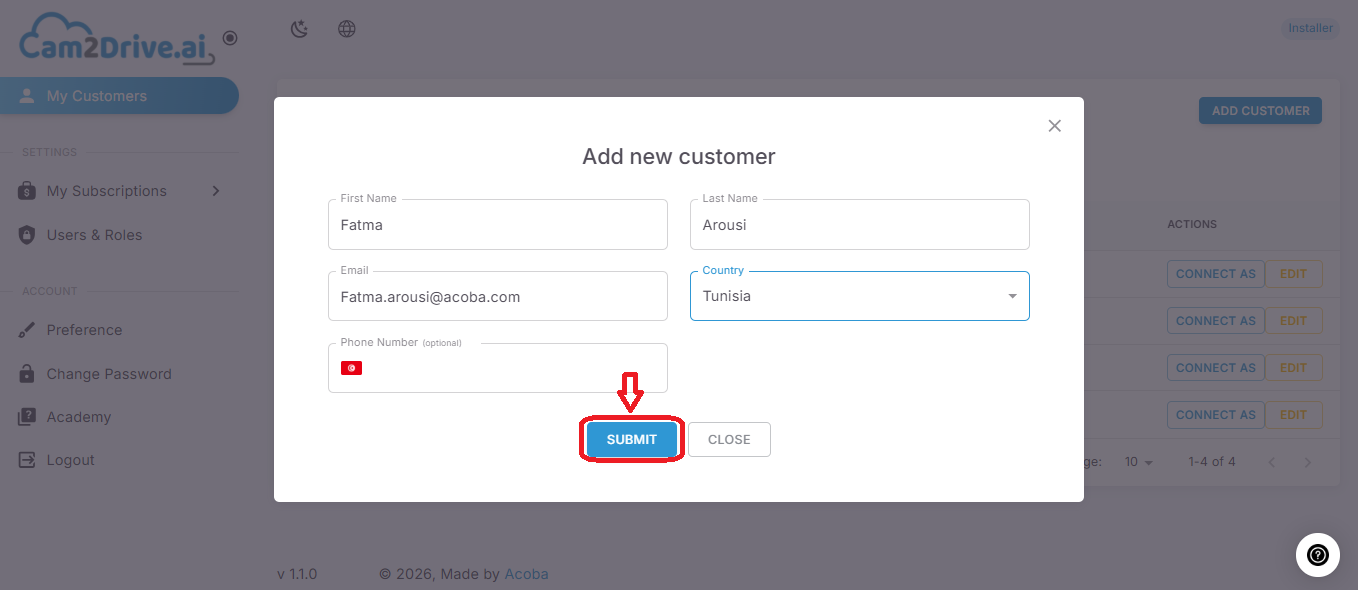
Then fill in the required information in the displayed form and click on the “Submit” button, as shown in the image below:
2.2. Edit customer
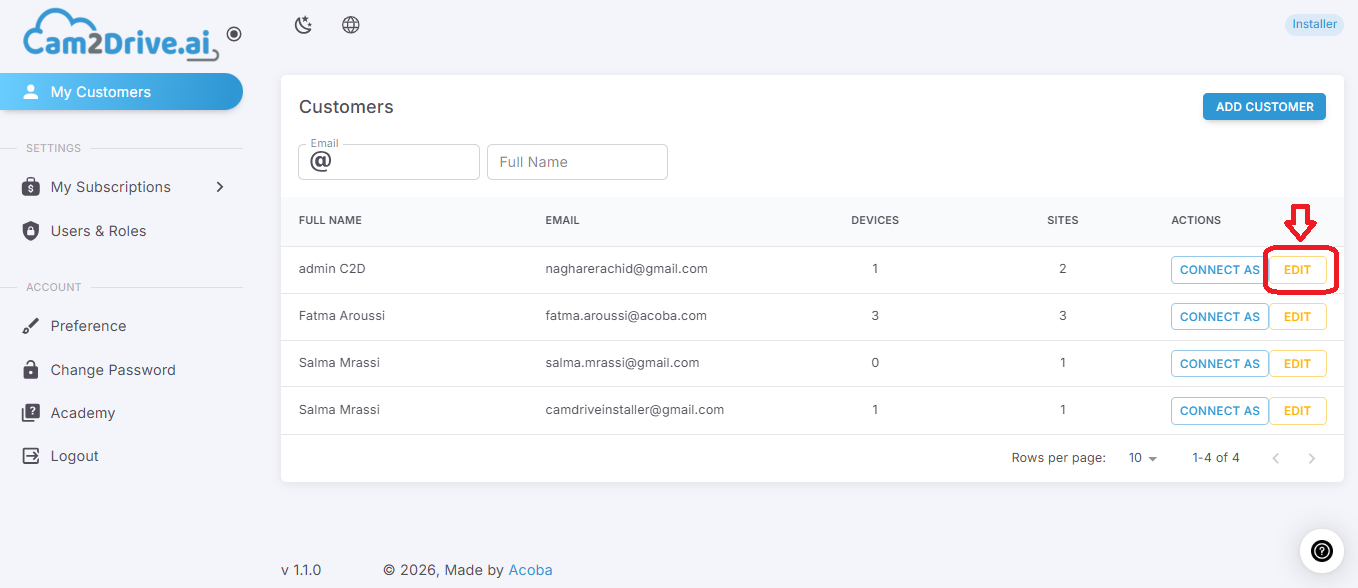
To edit customer, simply click on the “edit” button as shown below.
From the customer interface, you can edit:
- Customer information:
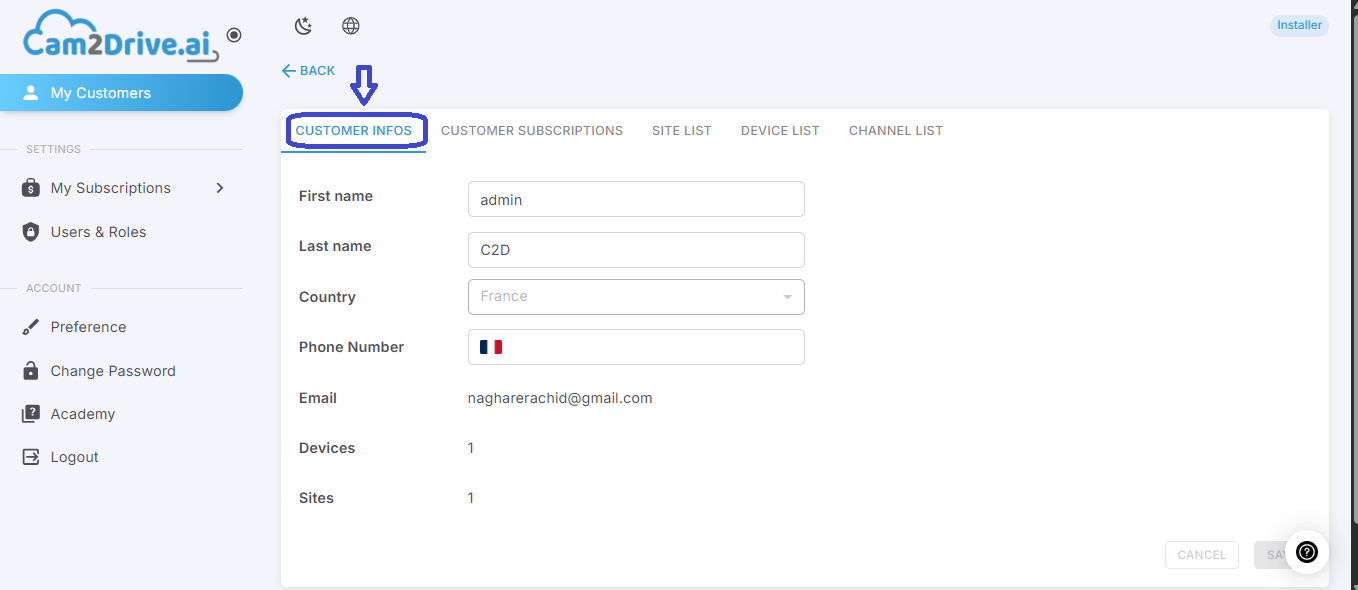
Note: The customer’s email address is defined when the account is created and cannot be modified from this interface.
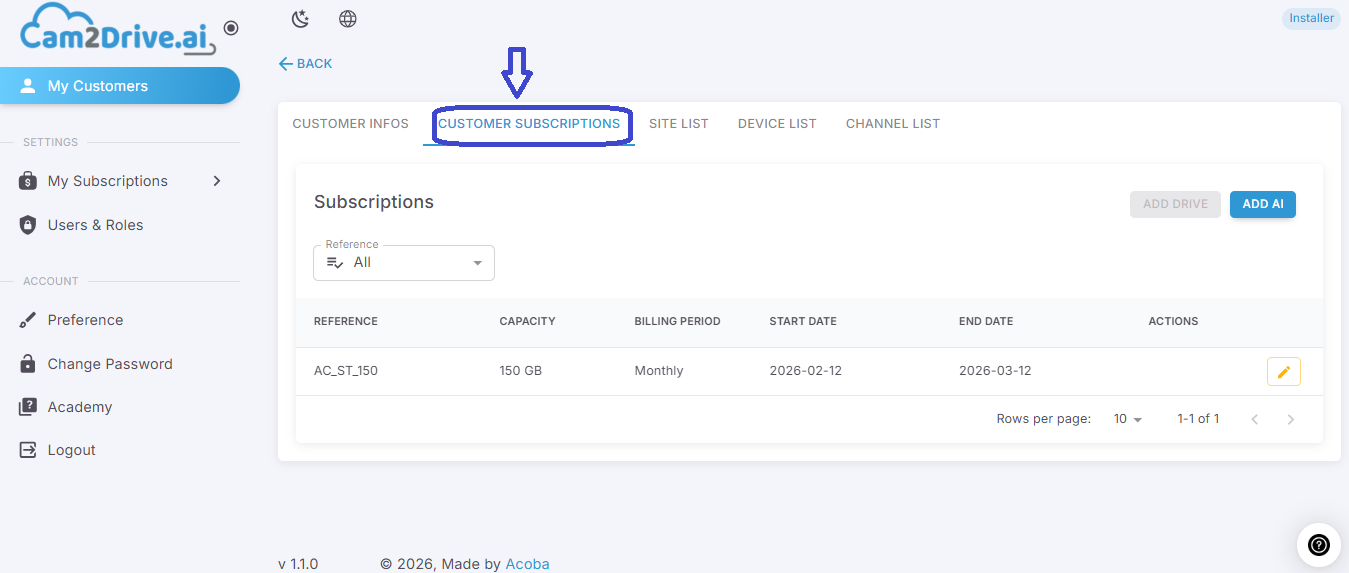
- Customer subscriptions:
This section allows you to view the subscriptions associated with the customer.
For any modification or addition of a subscription, please contact your distributor or perform the operation from the distributor’s marketplace.
- Site List (Add, Edit, and Delete Sites) :
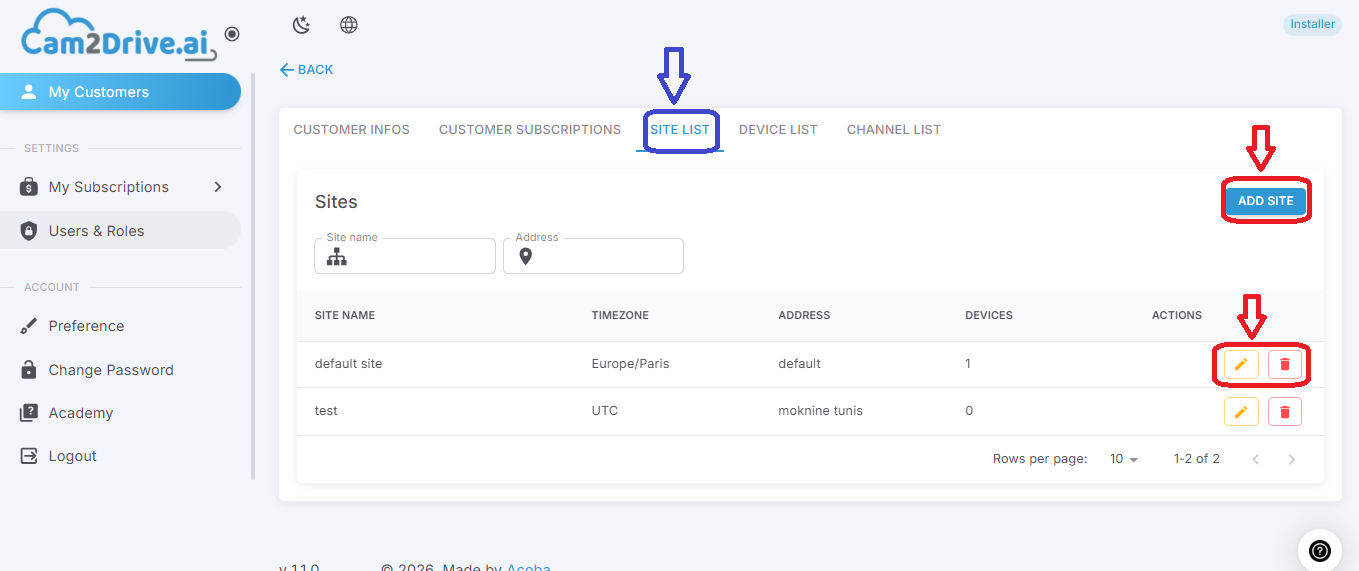
Note: A site containing recorders cannot be deleted; all recorders must be removed from the site before it can be deleted.
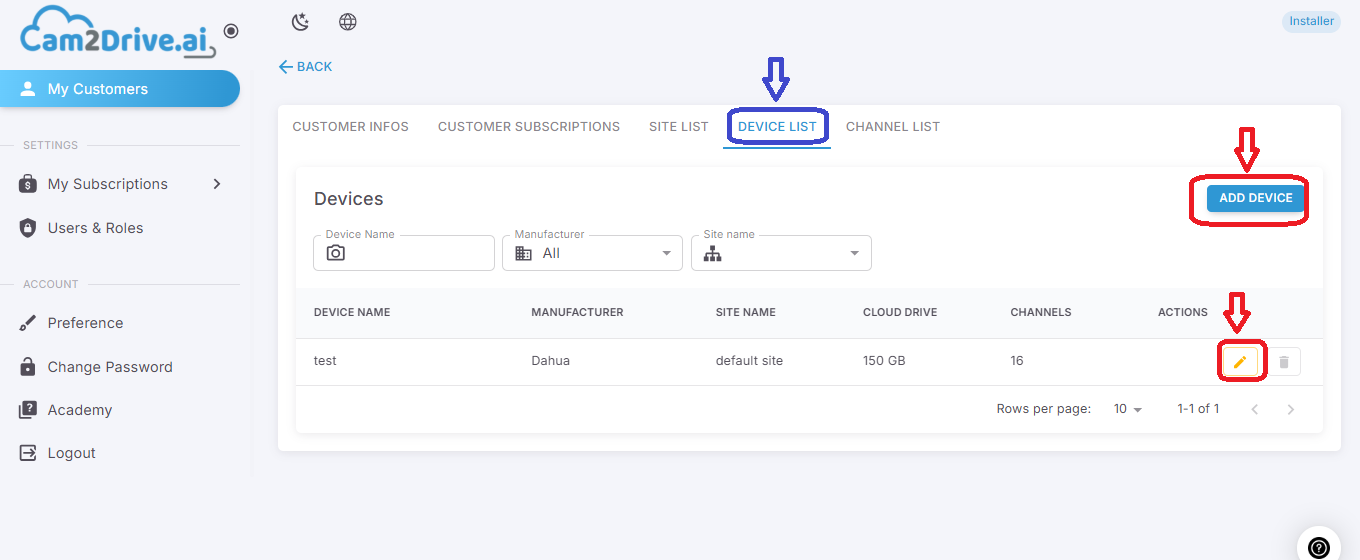
- Device List (Add and Edit) :
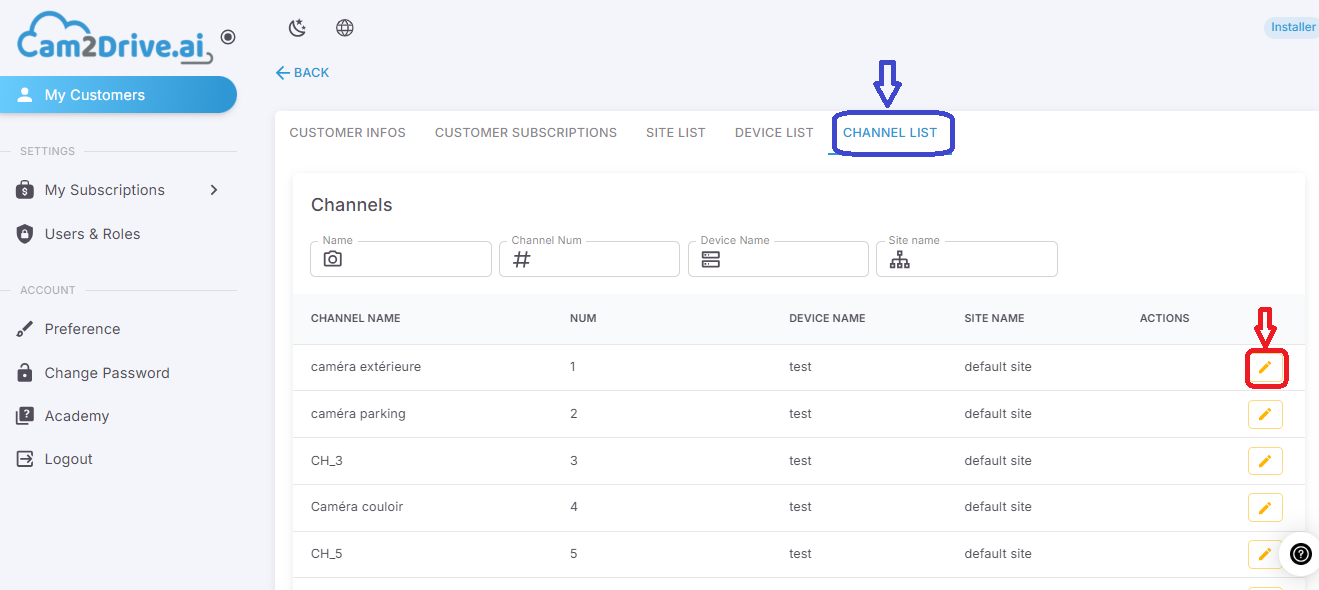
- Channel List (Edit) :
3. Subscriptions
Installers can manage two types of subscriptions for clients:
- Virtual Disks – Cloud storage solution
- AI Subscription – Advanced analytics service
3.1. Virtual disks
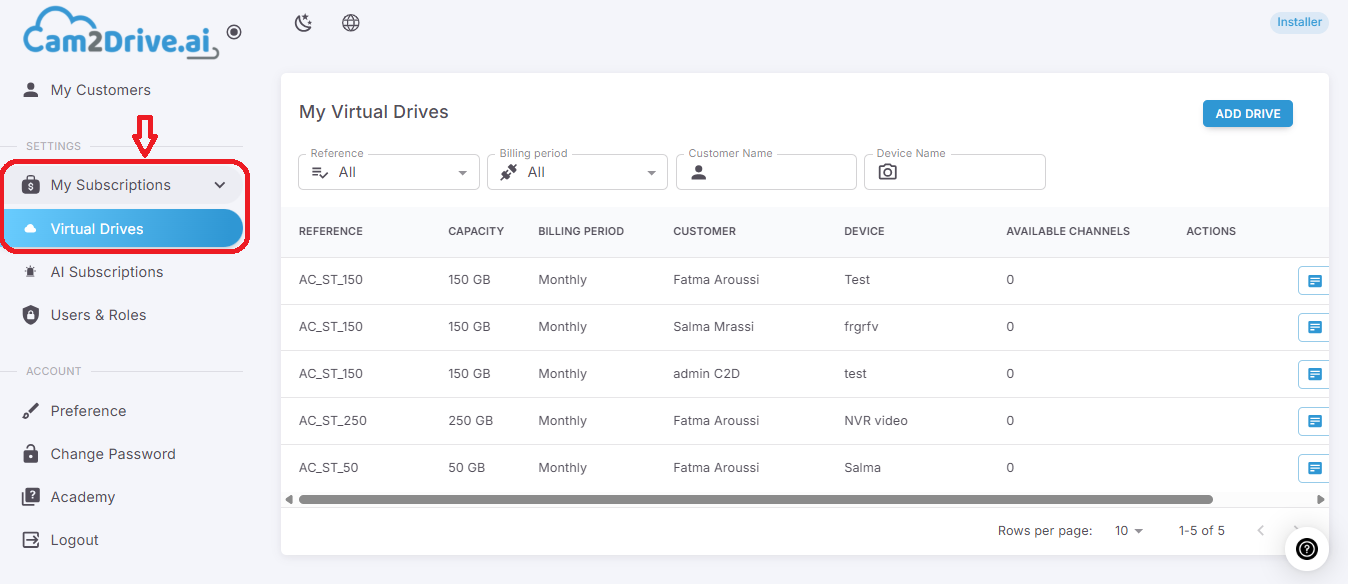
To manage Virtual Disk subscriptions, go to “My subscriptions” and select “Virtual Drives” to display the full list of client subscriptions.
3.1.1. Details of the virtual disks :
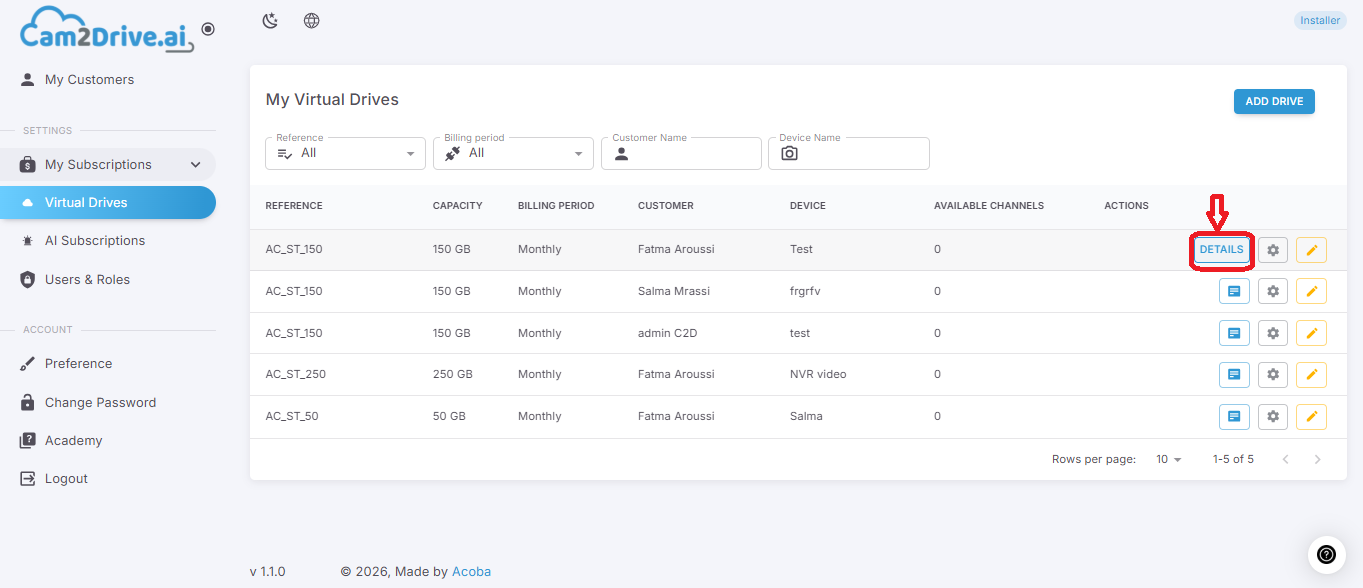
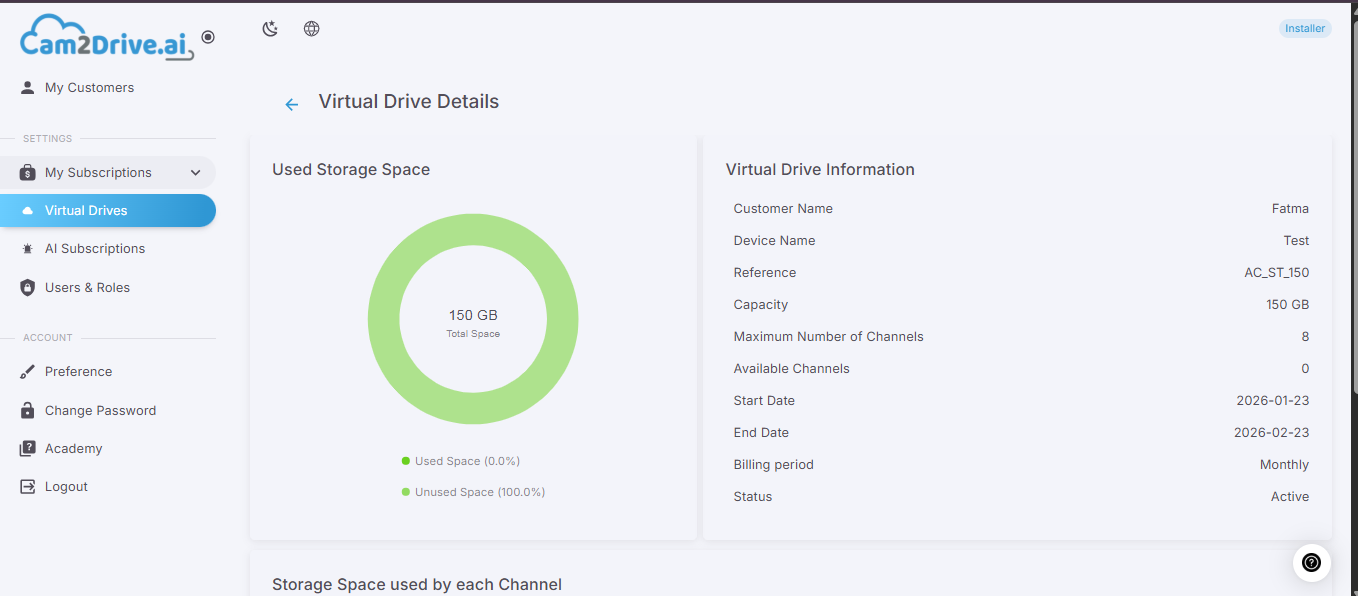
Click on the “Details” button to display the following information:
- Storage space used
- Information about the virtual disk
- Storage space used by each camera
3.1.2. Configuration :
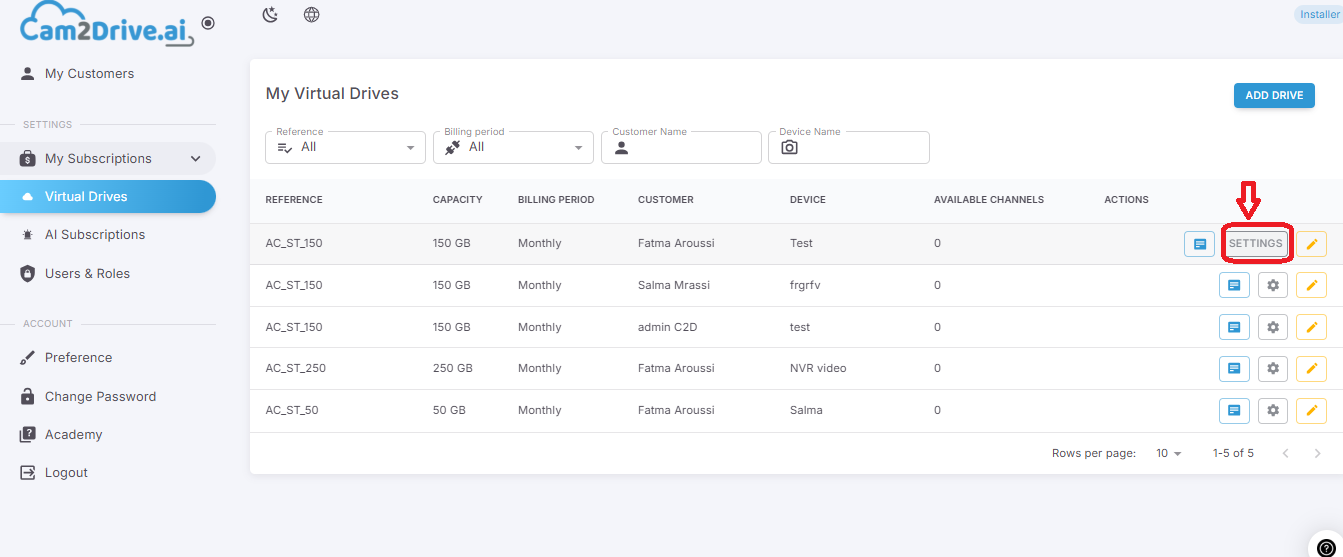
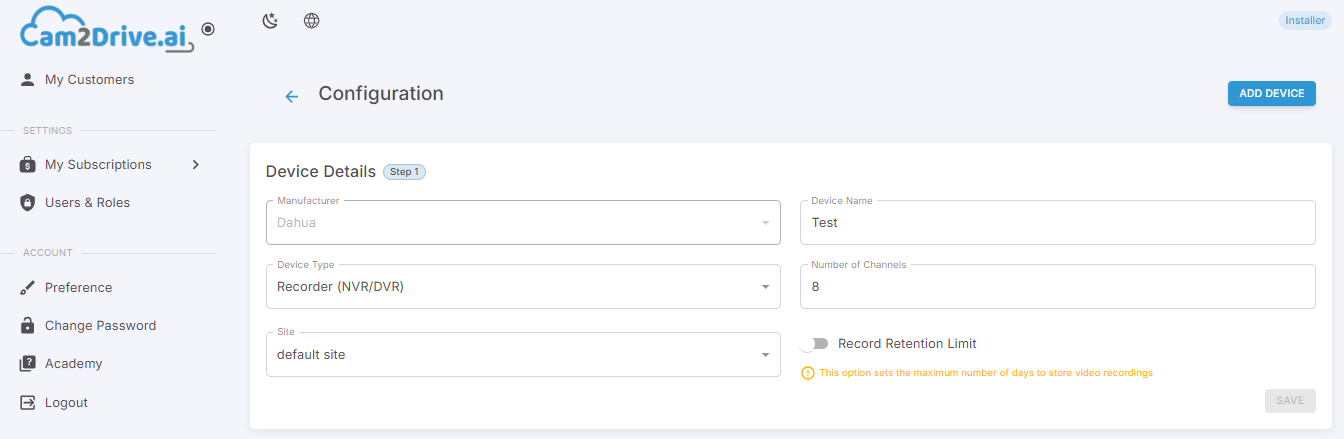
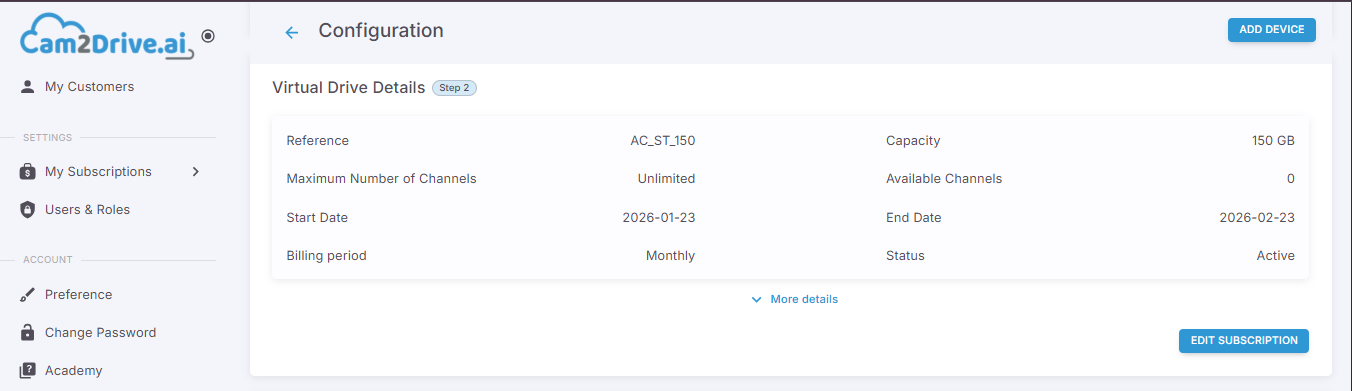
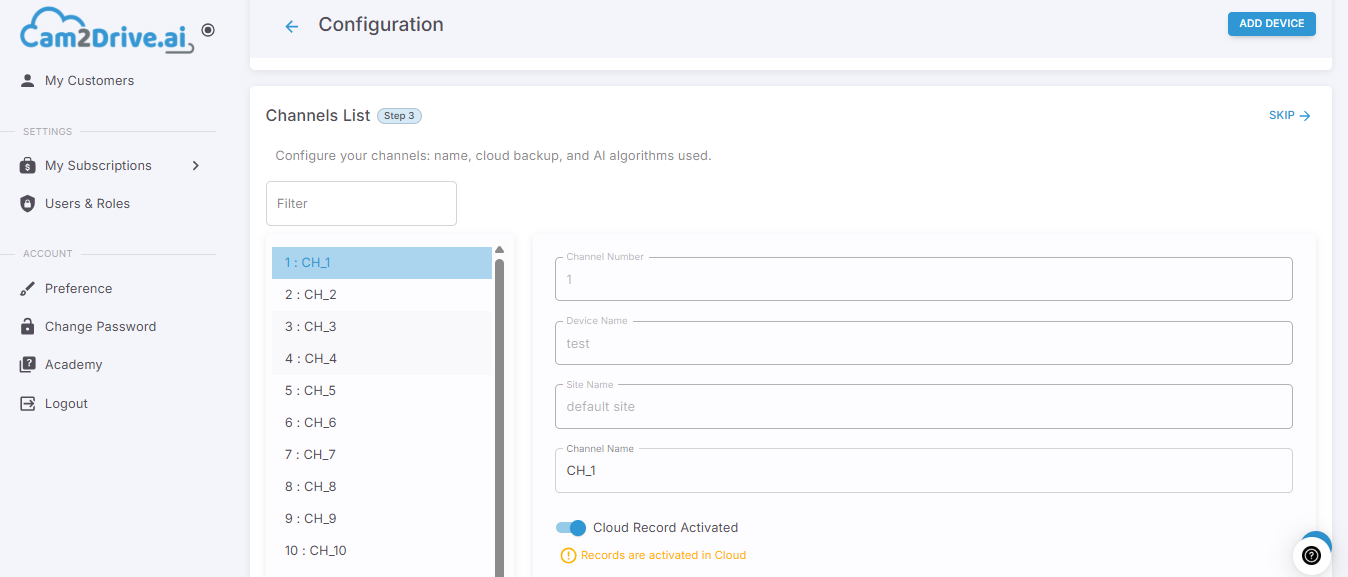
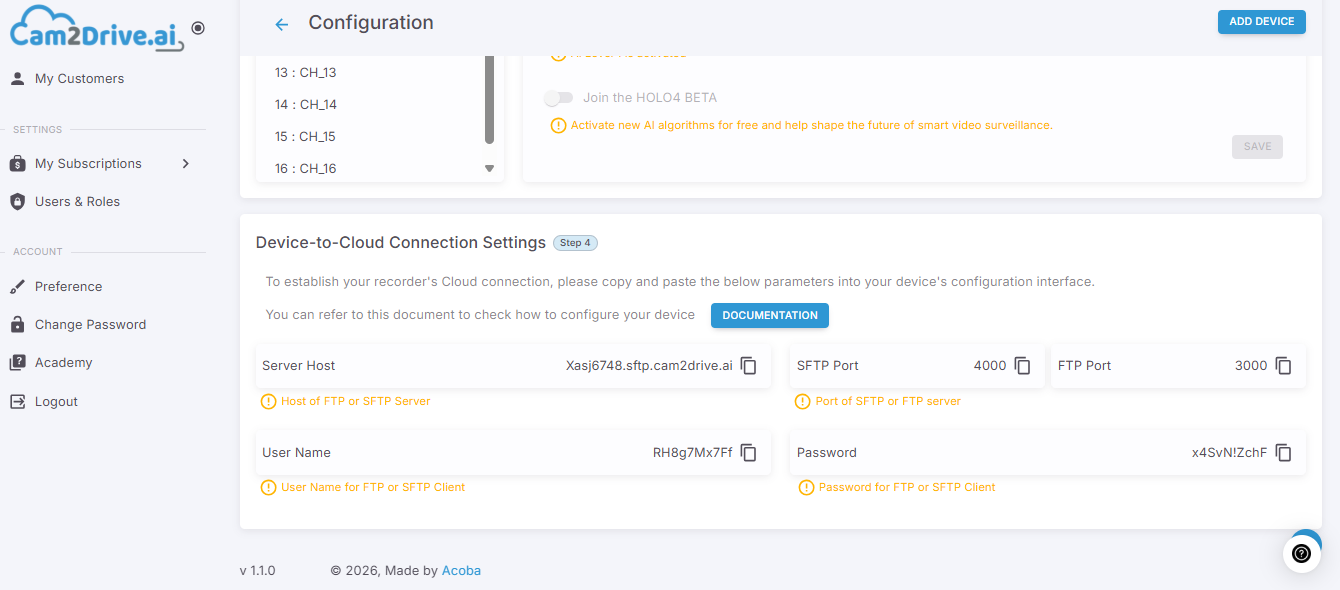
The configuration of virtual drives follows a simplified 5-step process :
Step 1: Device details
Step 2: Virtual drive details
Step 3: Channel list (configure your cameras: name, cloud backup, and AI algorithms used)
Step 4: Device to cloud connection settings
3.2. AI Subscriptions :
To manage AI subscriptions, go to “My subscriptions” and select “AI Subscriptions” to display the full list of clients’ AI subscriptions.
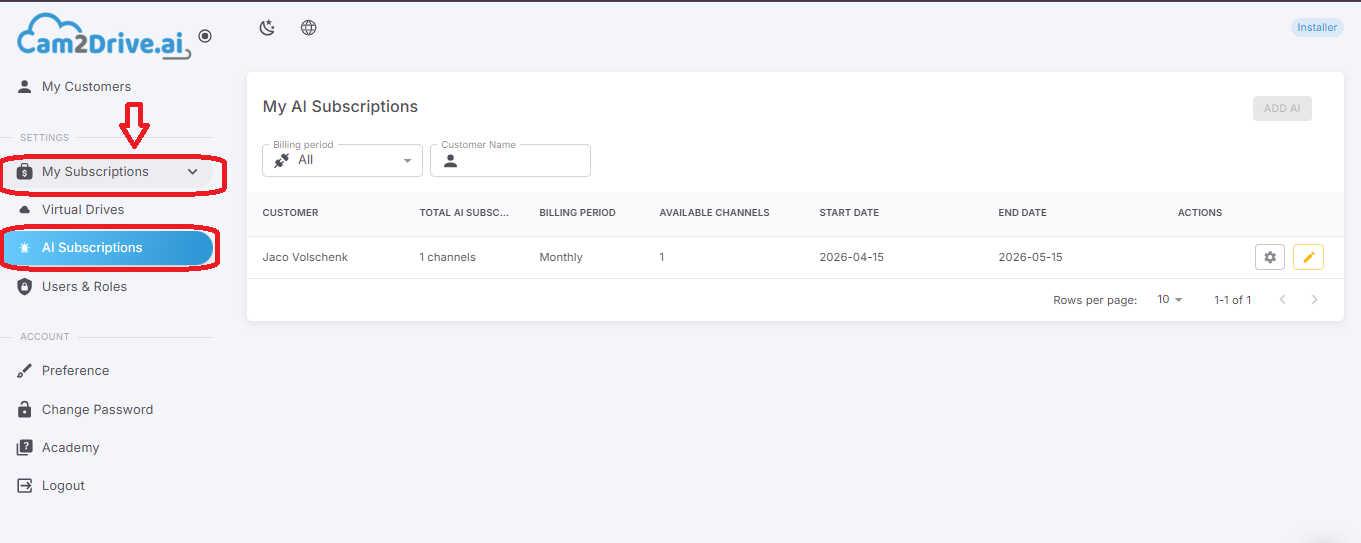
In addition, the installer can view the details of each subscription and configure the user’s virtual disk, with the details available in the client dashboard.
Note: The creation of an AI subscription is done through your distributor’s marketplace or via your distributor.
4. Users & Permissions
The “Users & Permissions” section allows you to manage access to your Cam2Drive space by adding users and precisely controlling what they can view or modify through predefined roles.
From this section, you can:
- Create and manage roles with specific permissions
- Add users and assign them a role
- Edit or delete existing roles and users
This approach ensures clear and secure access control based on each user’s responsibilities.
4.1.Management of roles
Role management allows you to precisely define the access scope of each type of user from the “Roles” tab.
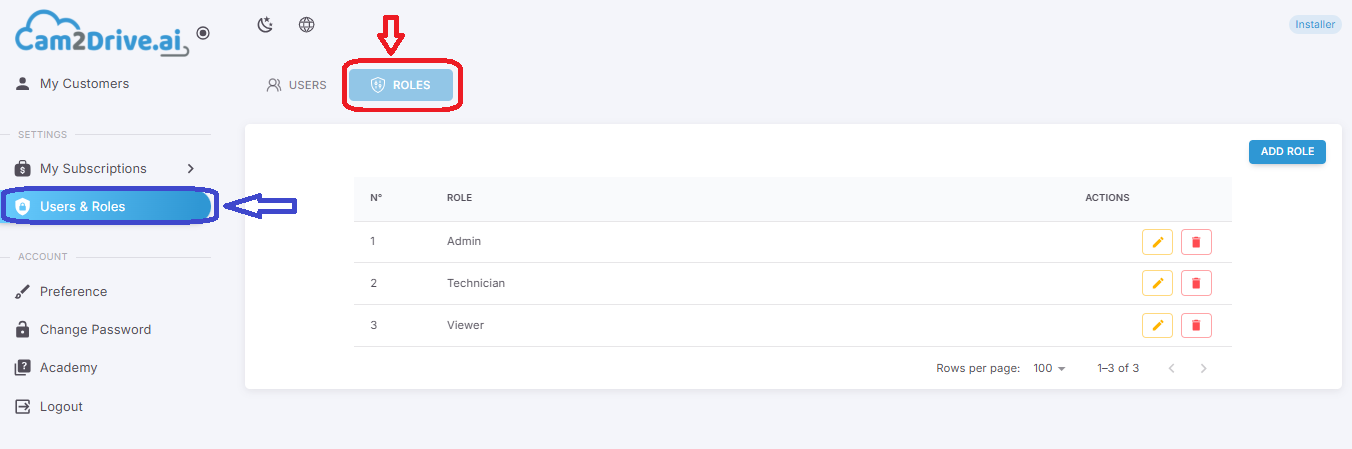
You can view the list of existing roles (for example: Admin, Technician, or Viewer), and “edit” or “delete” a role.
Note: A role assigned to at least one user cannot be deleted.
You must first remove this role from all concerned users before you can delete it.
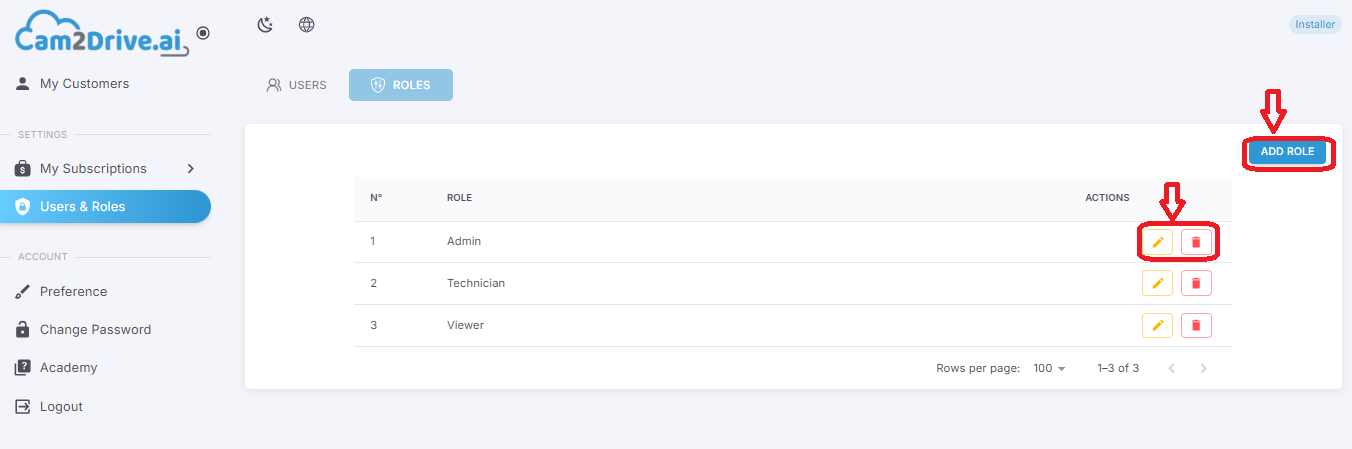
Or create a new role by clicking on “Add role”, entering its name and defining its permissions using the checkboxes.
4.2. User Management
User management allows you to add people to your account and control their access by assigning them a specific role: from the “Users” tab, you can view the list of users with their email address and their associated role.
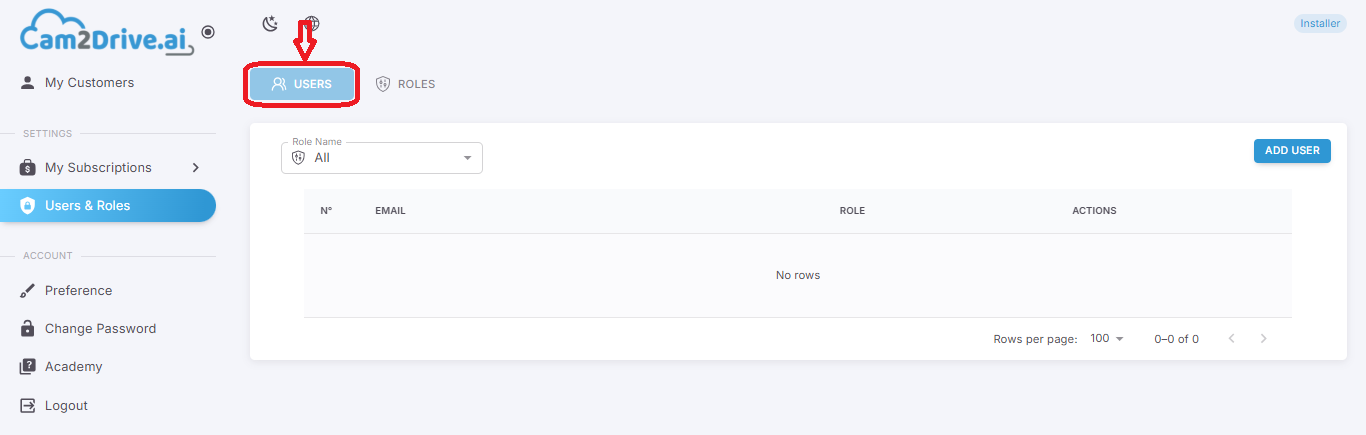
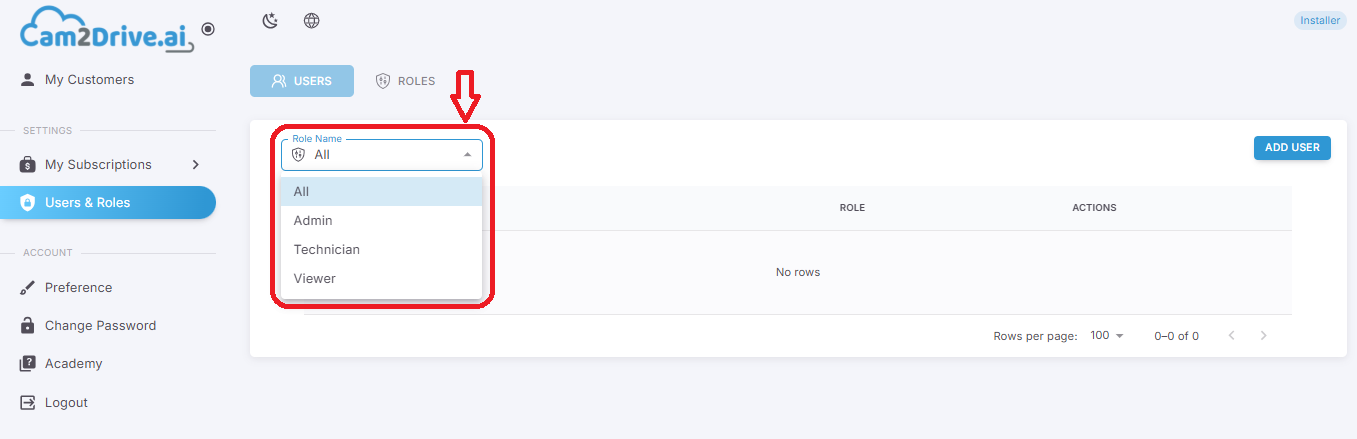
Filter users by role name to quickly find a specific access level.
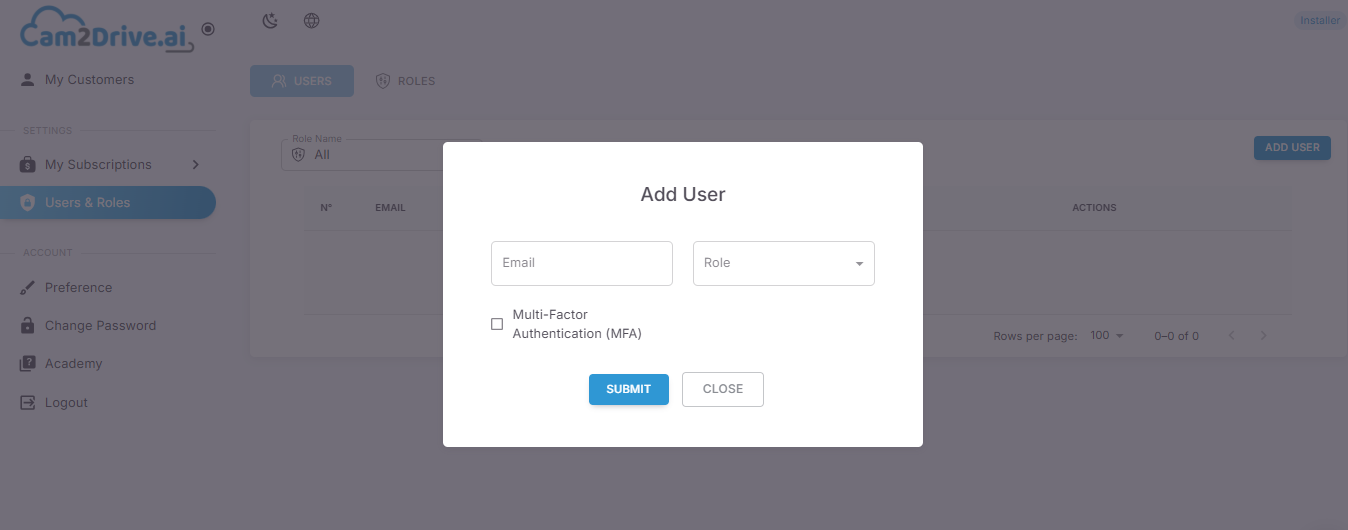
Add a new user by clicking on “Add user”, entering their email address, and assigning them a role.
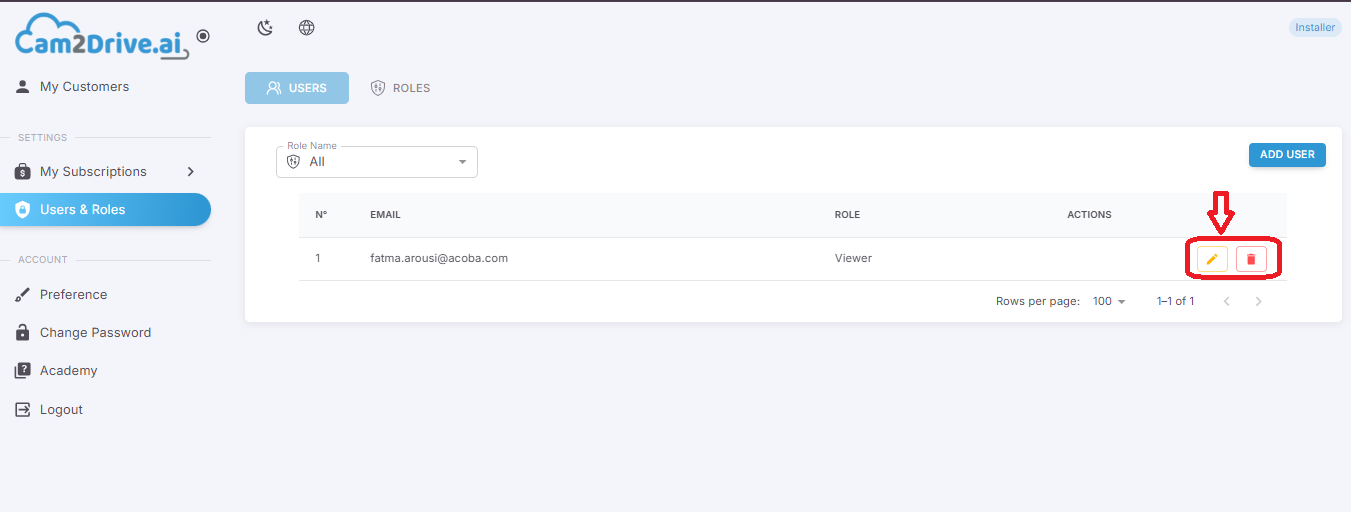
You can later modify their role via the “Edit” icon or remove them from your space using the “Delete” icon.
5. Account Settings
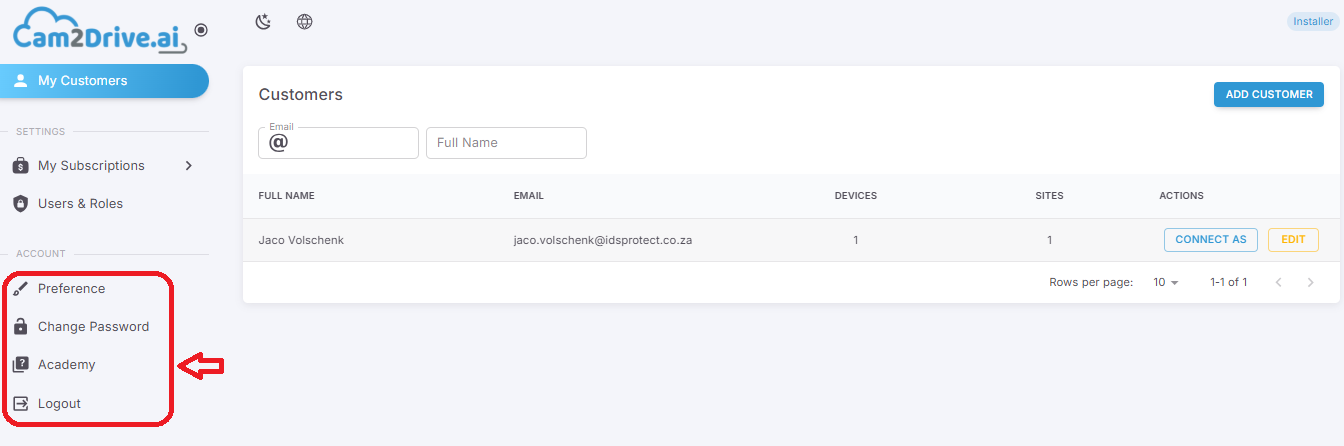
The Account section allows you to manage your personal settings, including interface customization, your account security, and logging out.
From the Account menu, accessible on the right, you will find 4 main options:
- Preferences
- Change password
- Academy
- Log out
5.1 Preferences
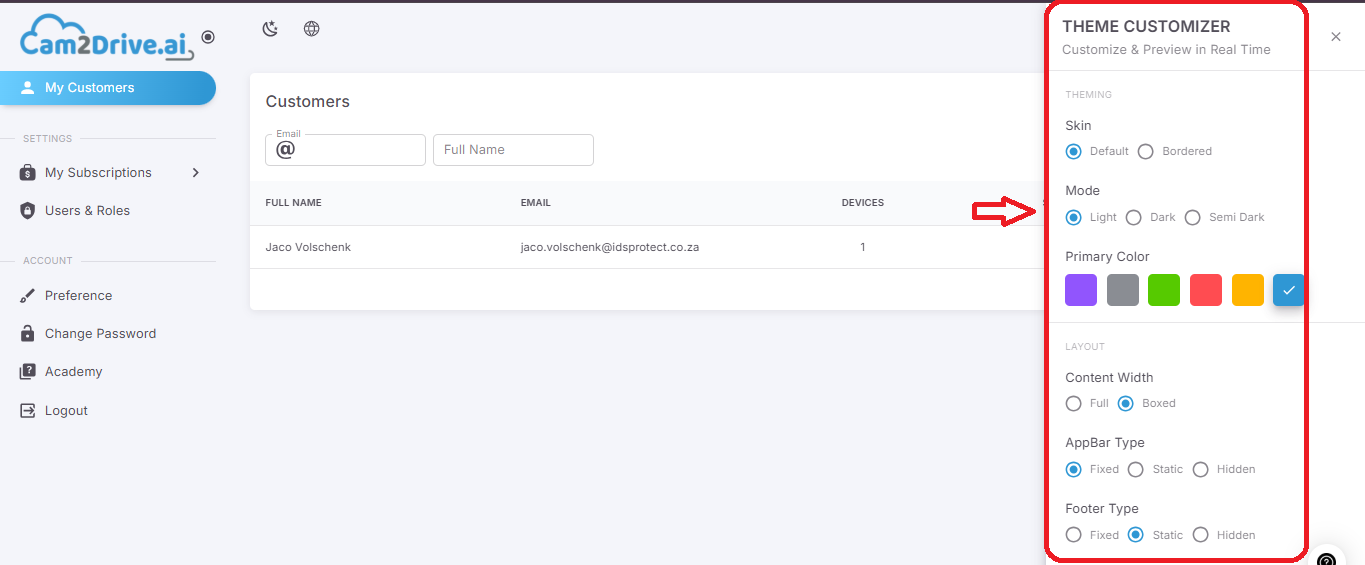
The “Preferences” section allows you to customize the appearance and display of the Cam2Drive interface according to your needs.
Changes are previewed in real time, allowing you to adjust the interface without reloading.
5.2 Change password
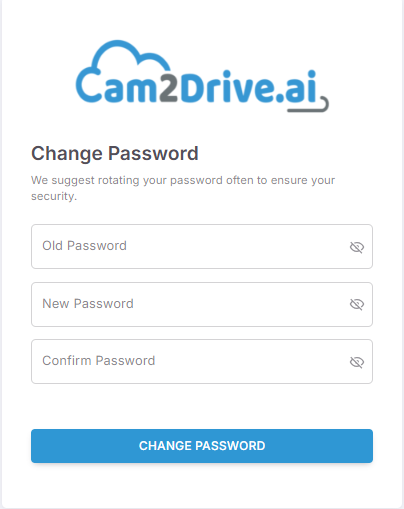
The “Change password” section allows you to strengthen the security of your account.
To change your password, you must:
- Enter your old password
- Enter your new password
- Confirm the new password
- Click on “Change password” to confirm
5.3 Academy
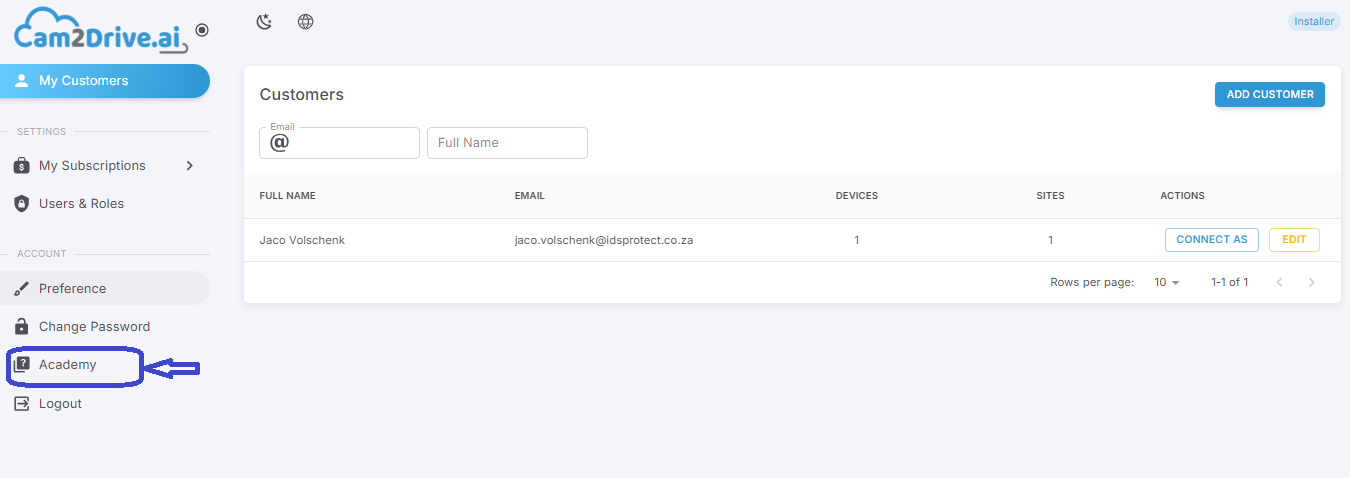
The “Academy” menu redirects you to the online training pages of our Cam2Drive tool.
There, you will find mini tutorial videos, a detailed user guide, an FAQ, as well as a list of downloadable PDF documents that can assist you in using the solution.

5.4 Log out
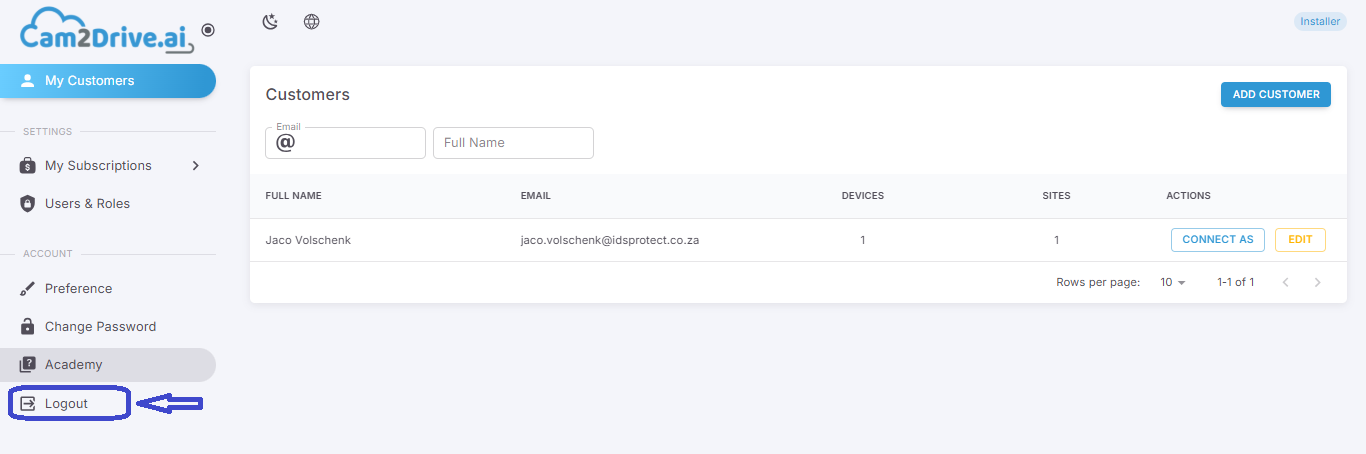
The “Log out” option allows you to securely exit your session.
Once logged out, you will be redirected to the login page.
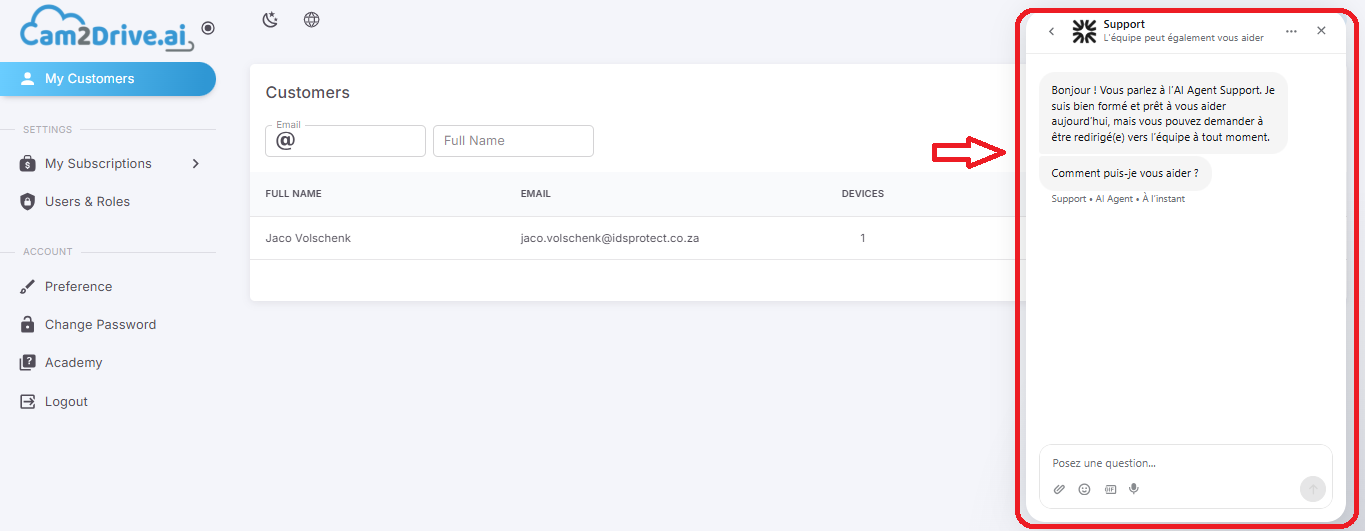
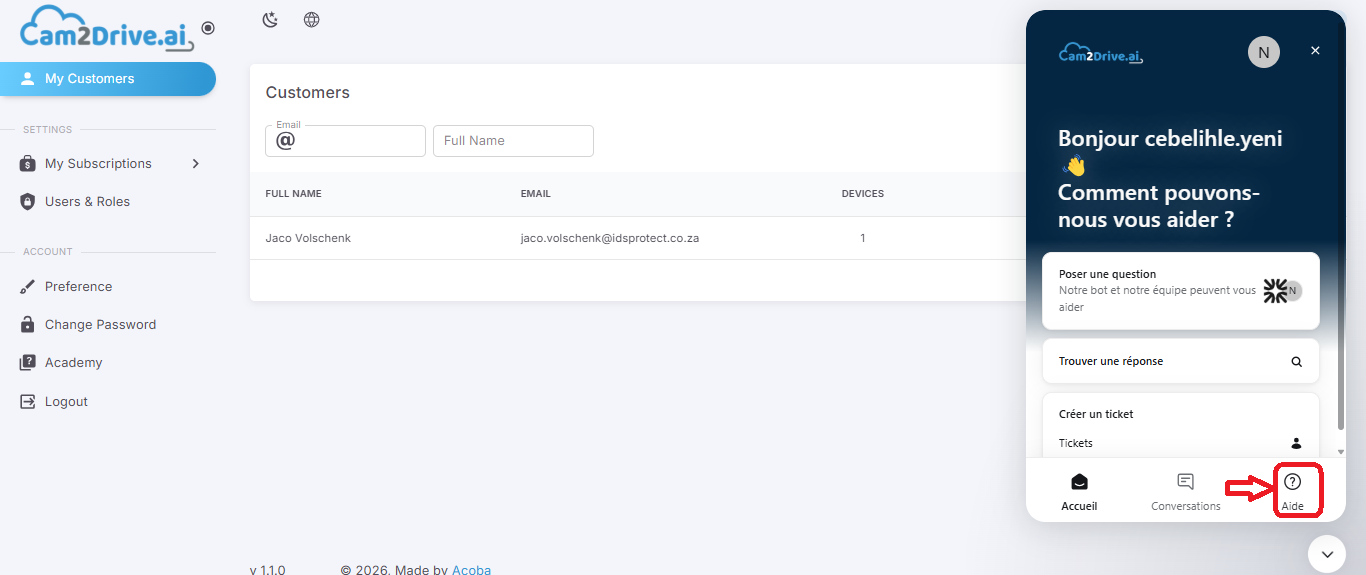
6. Live Support Chat
With this chat, you can ask your questions directly and receive an instant response from our intelligent support, without leaving your workspace.
6.1 Ask a question via chat
From the chat interface, you can:
- Enter your question in the dedicated field
- Send your message to receive an immediate response
- Interact continuously with support according to your needs
This channel allows you to quickly resolve questions related to the use of the platform.