

Welcome to our FAQ page!
Need help? You’re in the right place. This FAQ brings together answers to the most common questions to help you save time. If the information you’re looking for is not listed, contact us: our team is available to assist you. Browse the topics below and enjoy a smooth and frictionless experience.
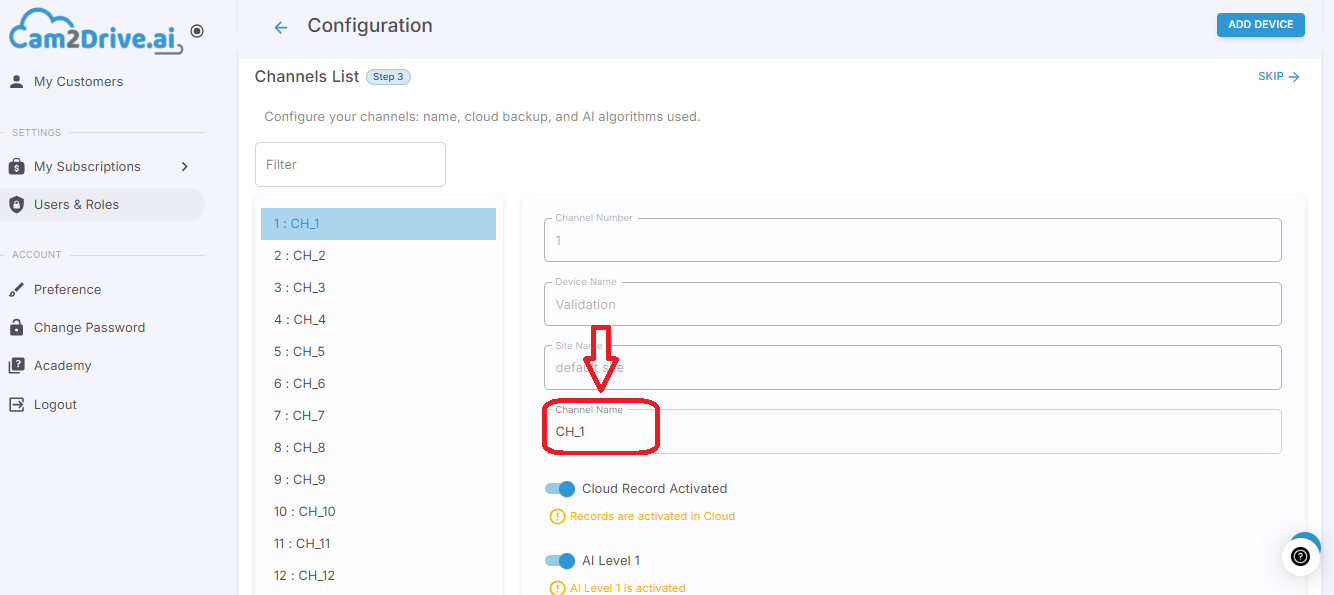
1. How can I change the name of a camera in Cam2Drive?
To rename a camera, log in to your Cam2Drive account, click on My clients, then on Edit on the right. Then go to Camera list, select the relevant camera, click on Edit, change its name, and confirm by clicking on Save.
2. How can I add a new recorder to the dashboard?
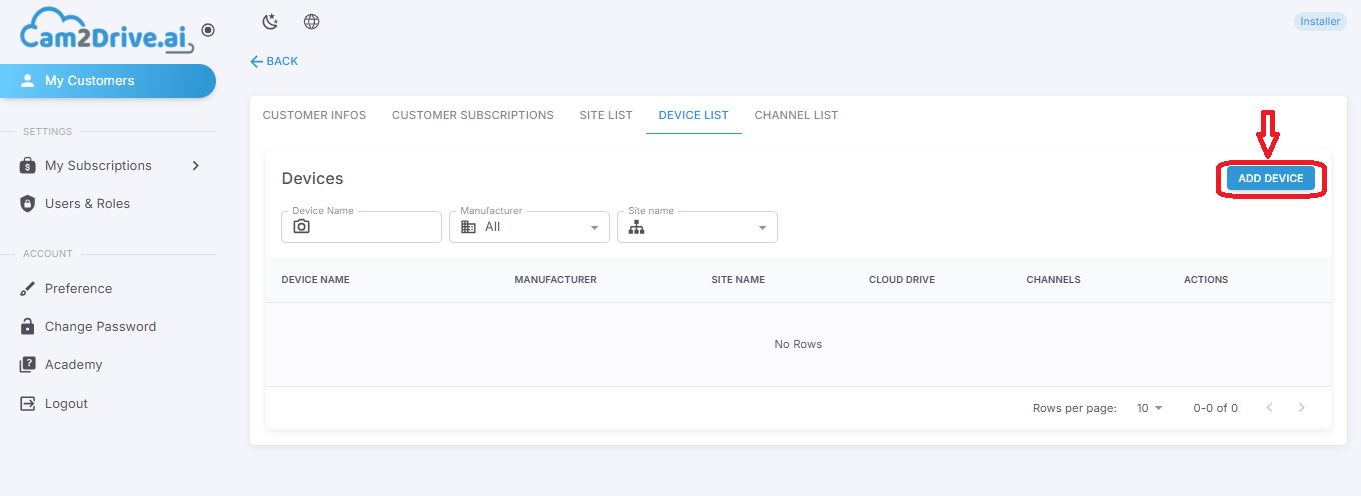
To add a new recorder, log in to your Cam2Drive account, then go to the My clients menu and click on Edit on the right.
Then go to the "Recorder list" section and click on the "Add a recorder" button, enter the recorder name, the manufacturer, the associated site, as well as the desired number of cameras, then confirm to finalize the creation of the recorder.
3. How can I change the password of my Cam2Drive account?
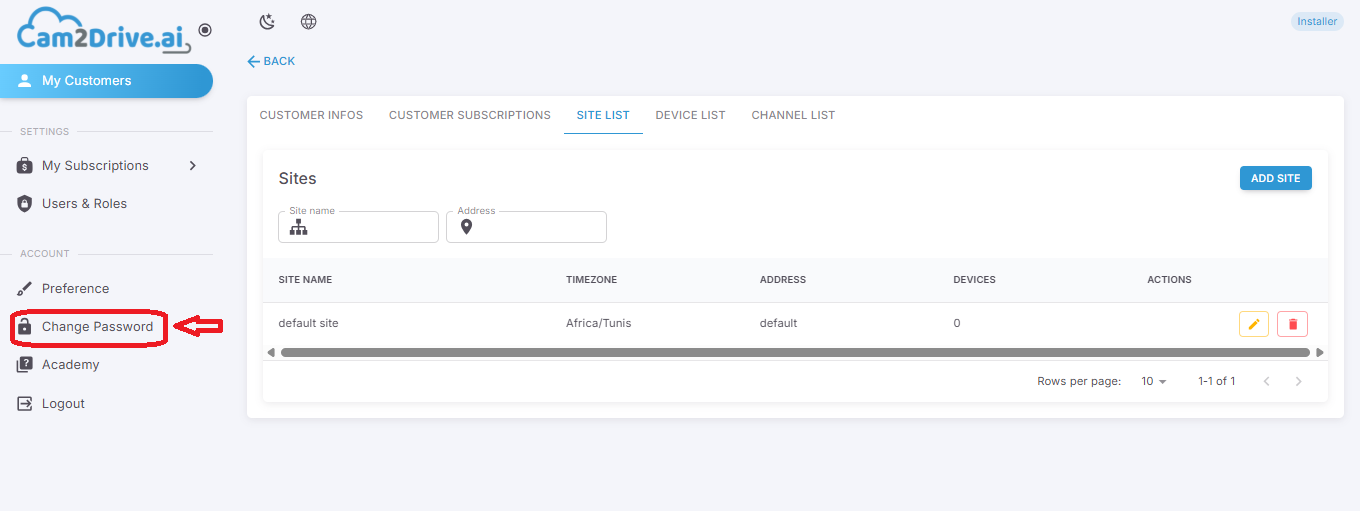
To change your password, log in to your account and click on “Change password” at the bottom left. Enter your current password, then your new password, confirm it, and click again on “Change password.”
4. How can I enable or disable cloud recording on a specific camera?
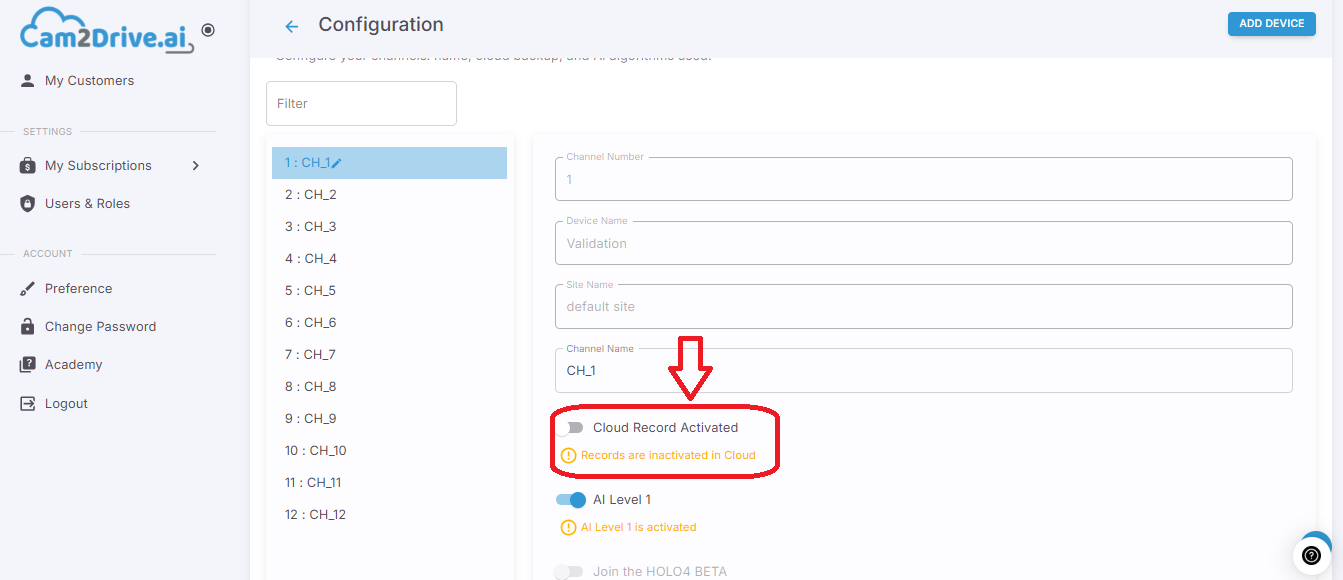
To enable or disable cloud recording on a specific camera, log in to your Cam2Drive account, then go to the My clients menu and click on Edit on the right.
Then go to the Recorder list section, select the relevant recorder, and click on Edit. You will be automatically directed to Step 4, where you can enable or disable cloud recording.
5. How does Level 1 AI work on a Cam2Drive camera?
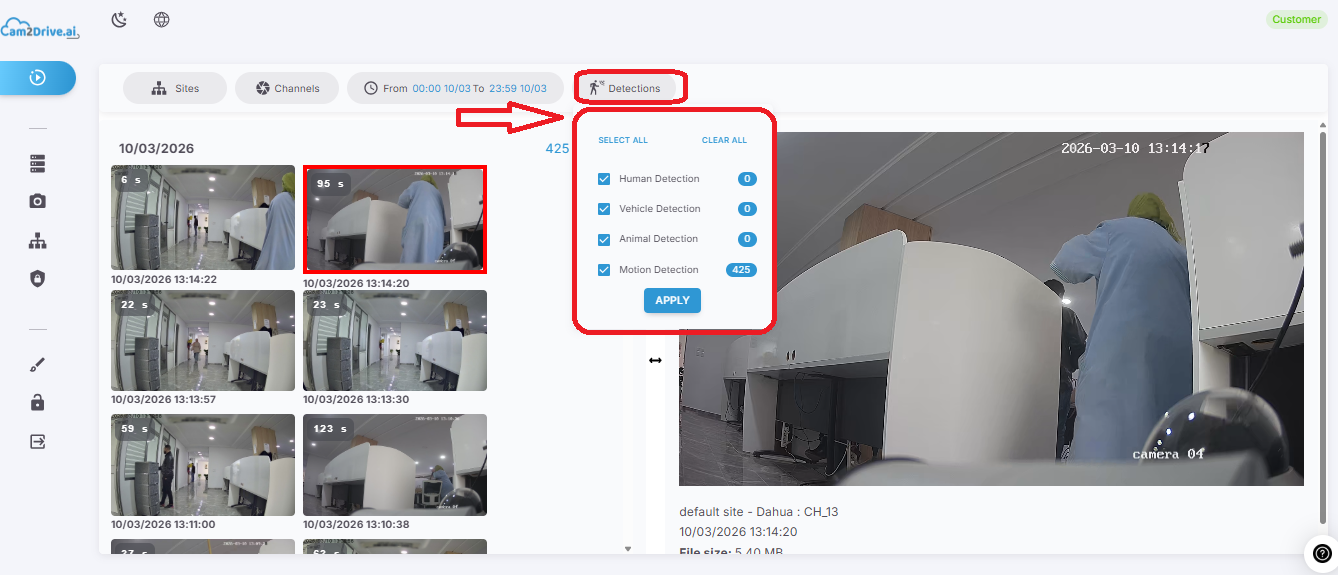
Level 1 AI in Cam2Drive analyzes recordings to make it easier to search for events.
It allows you to filter videos by detection type:
- Human
- Vehicle
- Animal
This feature is now available for free on Cam2Drive and does not require any additional subscription.
It allows you to find useful footage more quickly and improves the video viewing experience.
To use it, log in to your Cam2Drive account, select the relevant camera, and access the available recordings with AI filters.
6. How can I check the status of a license or cloud storage?
To add a new recorder, log in to your Cam2Drive account, then go to the My clients menu and click on Edit on the right of the relevant client.
Then open the Recorder list section, select the desired recorder, and click on Edit. You will then be automatically redirected to Step 4.
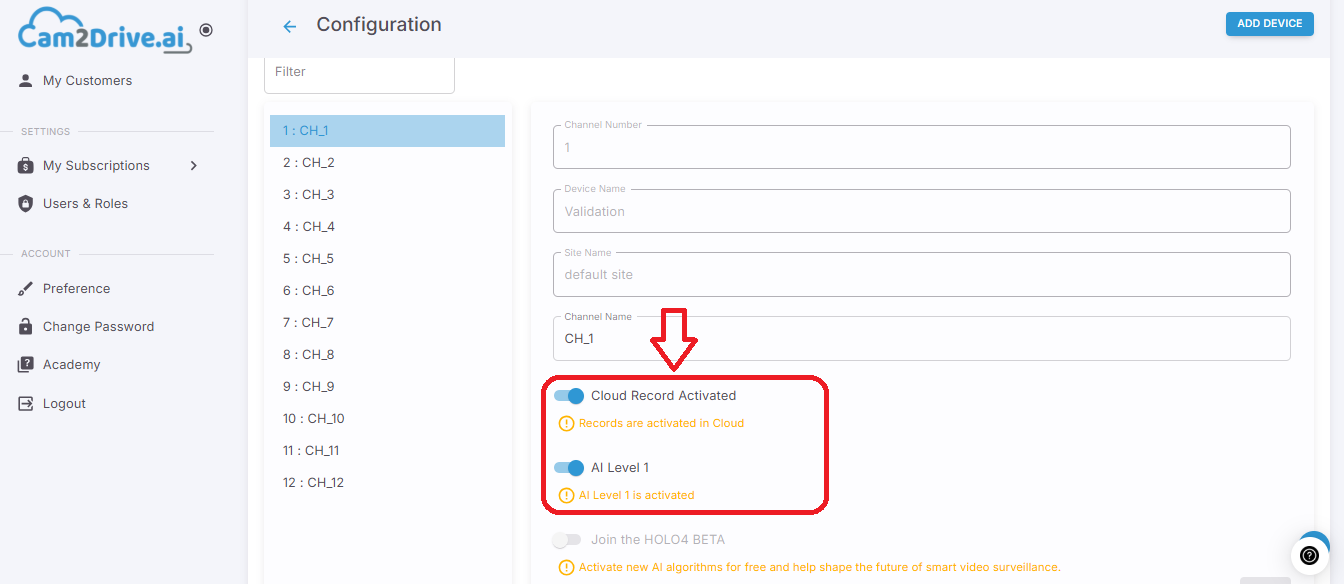
The displayed statuses allow you to verify whether the service is properly activated.
Notifications such as “Cloud recording enabled” also confirm the activation.
7. How can I search for a video by date and time range?
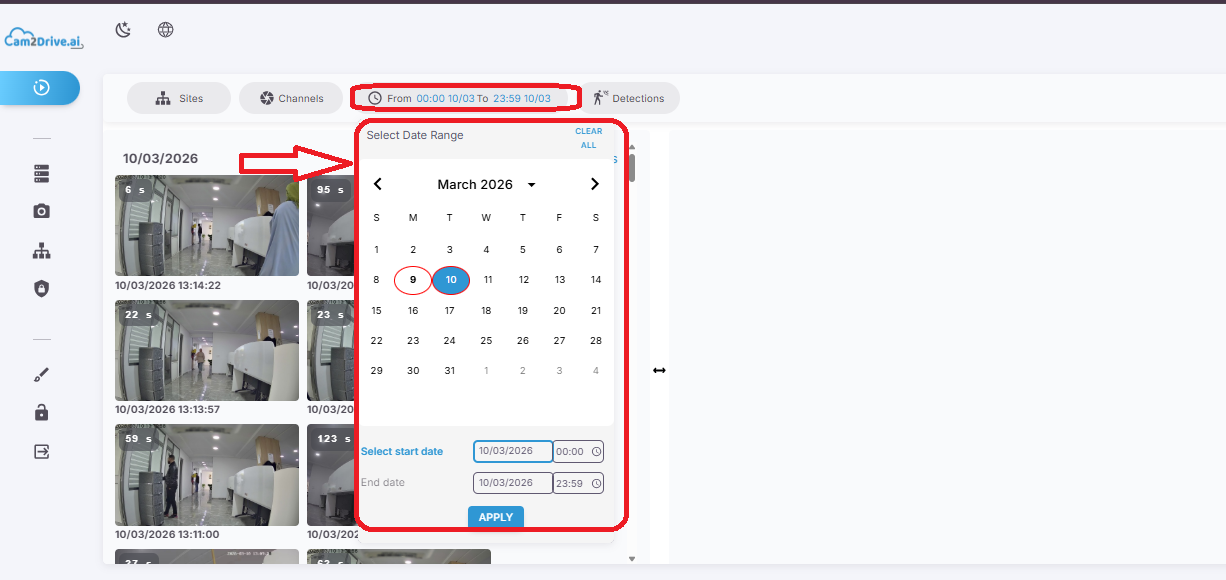
Go to the “Recordings” menu in the left-hand menu of your client interface, select the desired date and time, then use the filters to refine your search (by site, camera, or detection). .
8. Can I download recordings from my cloud account?
Yes, of course.
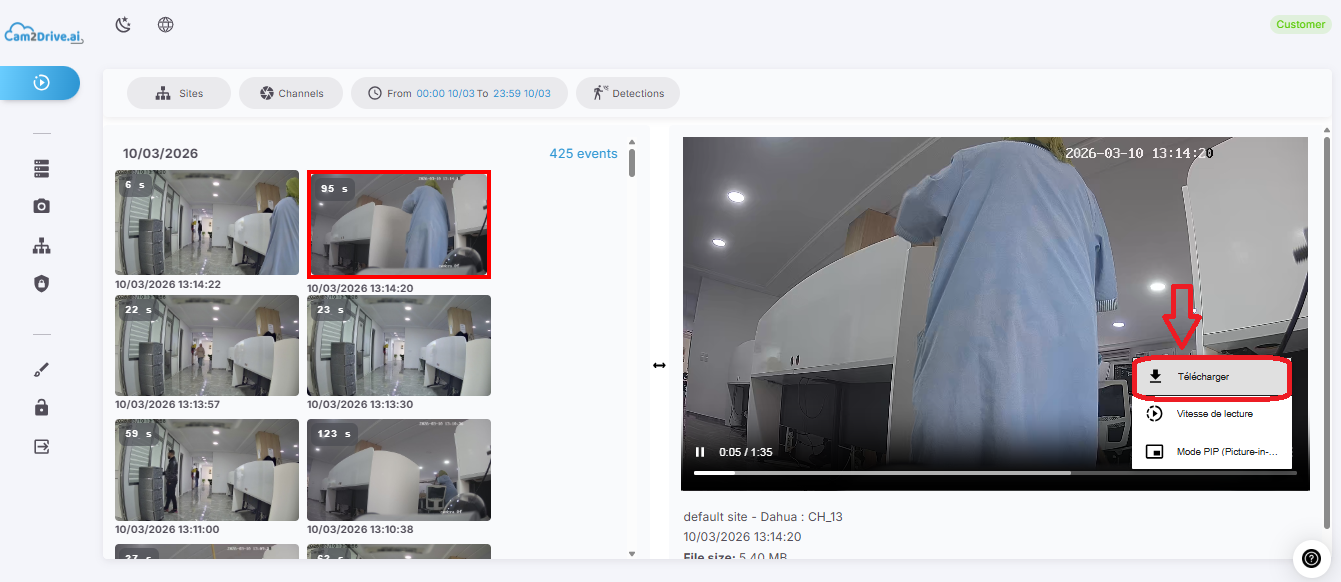
Go to the “Recordings” section, select the desired event or recording, then click on the download icon (down arrow) located at the bottom right.
The file will be downloaded to your device in a compatible format.
9. What happens when the storage space is full?
When the storage space reaches its maximum capacity, the system automatically deletes the oldest recordings based on the FIFO principle (First In, First Out).
This allows space to be freed for new recordings.
10. How can I manage users and access rights on Cam2Drive?
In the Users & Roles section, select the relevant user, assign them a role (Administrator, Technician, or Viewer), then click on Save to confirm the changes.
You can also customize the access rights of each role or create new ones according to your needs.
11.How can I log out of Cam2Drive?
To log out, go to the Account section in the left-hand menu, select Log out, and you will be automatically redirected to the login page.
12. How can I manage sites in Cam2Drive?
To manage sites, log in to your Cam2Drive account, then go to the My clients menu and click on Edit on the right of the relevant client.
Then go to the Site list section.
- Add a site: click on Add site, enter the required information (name, address, time zone), then click on Submit.
- Edit a site: select the site from the list, click on Edit, update the information, then click on Save.
- Delete a site: select the relevant site, then click on Delete.
.png?width=1890&height=880&name=Design%20sans%20titre%20(32).png)
13. Which web browsers are supported?
Cam2Drive is compatible with all web browsers; however, Google Chrome is recommended for an optimal experience.
Tip: Always use the latest versions of browsers to ensure optimal compatibility.
Note: If you experience video playback issues despite using a compatible browser, this may be related to your device’s hardware performance.
14.Is a fixed public IP address required to use Cam2Drive?
No.
A fixed public IP address is not required to use Cam2Drive.
Cam2Drive cloud solutions are designed to work without a fixed IP, allowing for simpler and more accessible deployment for most installations.
15. Which video compression types are supported by Cam2Drive (H.264 / H.265)?
Cam2Drive is compatible with videos compressed in H.264 and H.265, regardless of the compression mode used.
16. Why is there no sound in Cam2Drive even though audio is enabled on my camera and works on my NVR / DVR?
Cam2Drive does not support all audio codecs.
If your camera uses a non-supported audio codec, sound will not be available in the application.
To resolve this issue, reconfigure your camera’s audio settings to use the AAC codec, which is the audio codec supported by Cam2Drive.
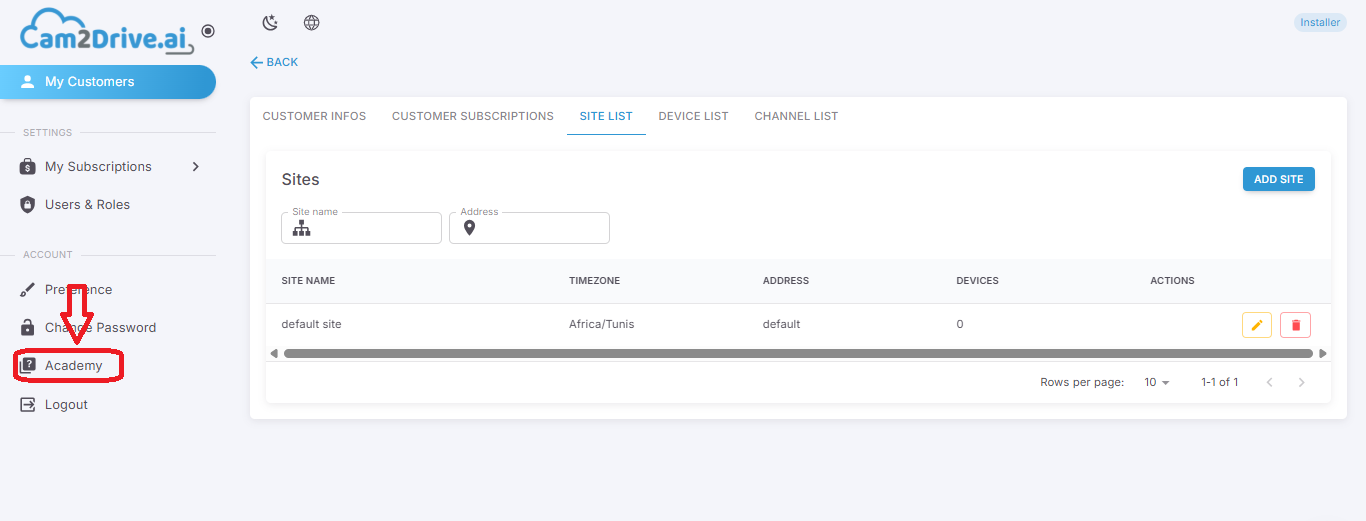
17. How can I access training on how to use and the features of the Cam2Drive platform?
To access the training, log in to your Cam2Drive account, then click on Academy. You will be automatically redirected to the dedicated training page.
.